Australia eSIM|Almond eSIM
- Package Type
Total Amount:
$34.36
Payment Methods






Payment Methods
We balance price and connection quality to offer good-value plans that make it easy to stay connected while you travel.
We work with local network operators and regularly review prices and service conditions to keep improving our selection of plans.
No advance reservation is needed. Your eSIM QR code and setup instructions are emailed after you order, within 3 minutes.
Our human support team is available 24 hours a day. Tap the chat icon on the right of the website to start an online conversation.
Connection speeds and availability vary by location, network congestion, device and other conditions.
eSIM specifications and information to check before purchase
Choose based on your trip length and how you use data.
For trips with a similar amount of data use each day. A daily allowance makes it easier to plan your usage.
Use a total data allowance during the plan's validity period. A practical option when your usage changes from day to day.
For frequent social media browsing or video streaming. Check the plan details for speed limits and other conditions.
Choose what works for your device, group and usage.
Swipe to view the full table →
| Feature | Almond eSIM | Pocket Wi-Fi | Physical SIM |
|---|---|---|---|
| Collection & return | Delivered by email No return needed | Collect and return the device Depends on the service | Collect the SIM Return requirements vary |
| Extra items to carry | Just your device | Router and charger | SIM card |
| Setup | Add an eSIM to your device | Connect to Wi-Fi | Swap the SIM card |
| Charging | Your phone | Phone and router | Your phone |
| Sharing with others | Hotspot availability depends on the plan | Share within the supported device limit | Hotspot availability depends on the service |
| Check before use | eSIM support and SIM lock status | Collection method and service conditions | SIM size and SIM lock status |
Data use varies by app, video quality and usage.
| Activity | What to consider |
|---|---|
| Maps & local searches | If you check maps and look up places frequently, allow some extra data for your trip. |
| Social media & photos | Usage varies with photo uploads and autoplay videos. Consider a larger plan if you watch videos often. |
| Voice calls (assuming 64kbps) | About 34 hours 40 minutes per 1GB |
| Video (assuming 1Mbps) | About 2 hours 13 minutes per 1GB |
| Video (assuming 3Mbps) | About 44 minutes per 1GB |
| Video (assuming 5Mbps) | About 26 minutes per 1GB |
These are theoretical estimates using 1GB = 1 billion bytes and the formula: allowance × 8 ÷ bitrate.
They do not guarantee the actual usable time of any app. Network overhead, quality settings and usage affect consumption.
When using several apps or activities, consider their combined data use.
Count the days you need data, from arrival to departure. Check your plan's start and end times and how its validity period is counted.
For maps and messaging, consider a total data or daily data plan. For frequent social media or video use, a larger allowance or unlimited plan may suit you.
If you need to call using a phone number, check the plans with voice calling. Also confirm device compatibility, installation timing, speed limits and hotspot conditions before buying.
From checking your device to connecting at your destination.
iPhone XR / XS / XS Max
iPhone SE (2nd and 3rd generation), iPhone 11 and later
iPad mini 5, iPad 7 and later
iPad Pro 12.9 (3rd generation), 11 (1st generation) and later
iPad Air (3rd generation) and later
AQUOS, Xperia, OPPO, Galaxy, Xiaomi, Google Pixel, HUAWEI and more.
Support varies by model, sales region and carrier version. Check your exact model in the compatibility list.
Your device must be SIM-free or unlocked, and support eSIM.
iPad support is limited to compatible Wi-Fi + Cellular models. Specifications vary by region and model.
Read your purchase email before starting setup.
Find the QR code and instructions emailed to you within 3 minutes of ordering.
Connect to a stable internet connection and follow the instructions to add and set up your eSIM.
Follow your plan's instructions to select your data line and enable data roaming.
Some plans start their validity period when installed. Check your purchase email and product details for the correct timing.
If you cannot connect, contact support before deleting the eSIM.
Go to Settings > Cellular (or Mobile Service) > Add eSIM.
Depending on your iOS version, this option may be called “Add Cellular Plan”.
Important: do not select “Convert to eSIM”, as this may affect the Japanese SIM you currently use.

Select “Use QR Code”.
Select this option even if you plan to enter the information manually instead of scanning the QR code.

Scan the QR code. An internet connection is required.
If you cannot display the QR code on another device, tap “Enter Details Manually” and enter the SM-DP+ address and activation code.
These details are sent with the QR code by email. If your email does not include a confirmation code, leave that field blank.

For T-Mobile eSIMs, carrier restrictions mean manually entered details such as activation codes are not provided. Manual installation is therefore unavailable.
Activate the eSIM
1Tap “Continue”. Do not cancel activation or delete the eSIM during this process, as the QR code may become unusable.

2When “Cellular Setup Complete” appears, installation and activation are complete.

3Your eSIM has now been added. If you are still in Japan, keep your primary line / +81 Japanese number selected to continue using your Japanese service.
Tap the newly added line (Travel / Secondary) and enable “Turn On This Line”.


Open Cellular Data and select the Travel / Secondary line, following the screenshots below.


Open the Travel / Secondary line and turn on Data Roaming to use the service.


If you still cannot connect after setup, configure the APN.
Settings > Cellular (or Mobile Service) > the added eSIM > Cellular Data Network
APN details are in the PDF attached to your email. Some devices do not allow manual APN settings.

Tap your primary line and turn off “Turn On This Line”.
Using your Japanese line overseas may result in high roaming charges. We recommend turning off your primary / +81 Japanese line.


Go to Settings > Mobile Network > eSIM > Add eSIM.
1Open Settings from the home screen.

2Mobile Network

3eSIM

4Add eSIM


5Open the camera and scan the QR code included in your email.


If you cannot scan the QR code, enter the eSIM details manually.


1After arrival, go to Settings > Mobile Network > eSIM.


2Select the eSIM you added.

3Turn on mobile data.

4Turn on data roaming.

5Basic setup is complete and you can now use the service.
If you still cannot connect, use the following steps to configure the APN.
1Select your Almond eSIM line and tap Access Point Names.

2Tap “+”, enter the APN and other required details, then tap the check mark in the top-right corner to save.
Note: delete the previous APN settings before adding the new APN.
The Name field can contain any label.


Help before setup and with connection issues during your trip.
 Icon example
Tap the chat icon on the right of the website
to speak directly with a member of our support team.
Contact us through LINE
@014hhnwwFor sharing the details of an issue
support@almondsim.comYou can also reach us on WhatsApp
+81 70-9019-0818Please provide your order number, device and a description of the problem.
You need Wi-Fi or another internet connection to contact us online.
 Almond eSIM
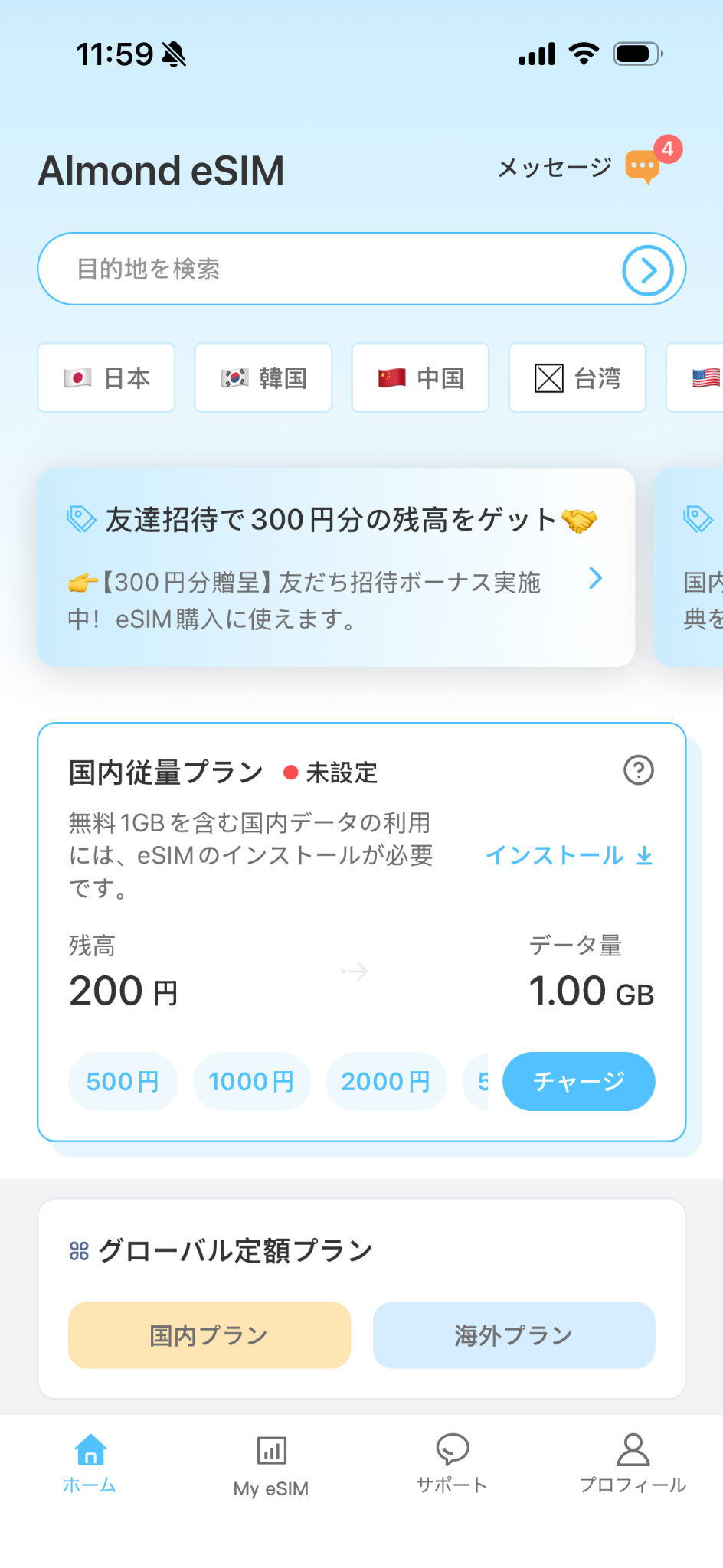
Alongside overseas travel plans, the app offers mobile data for use in Japan that you can top up when needed.
Log in to receive 1GB of mobile data for use in Japan.
See the app for eligibility, expiry dates and other benefit conditions.
© 2026 Almond, Inc.
Bigconnect coporation
2F,2-12-13 Shinjuku Antel Salon
Bld., Shinjuku, Shinjuku-Ku,
Tokyo To, 160-0022,Japan